
How to Create a Printable Calendar
Learn how to choose a calendar period, week start, paper size, orientation, events and notes, then print or save a useful calendar as PDF.
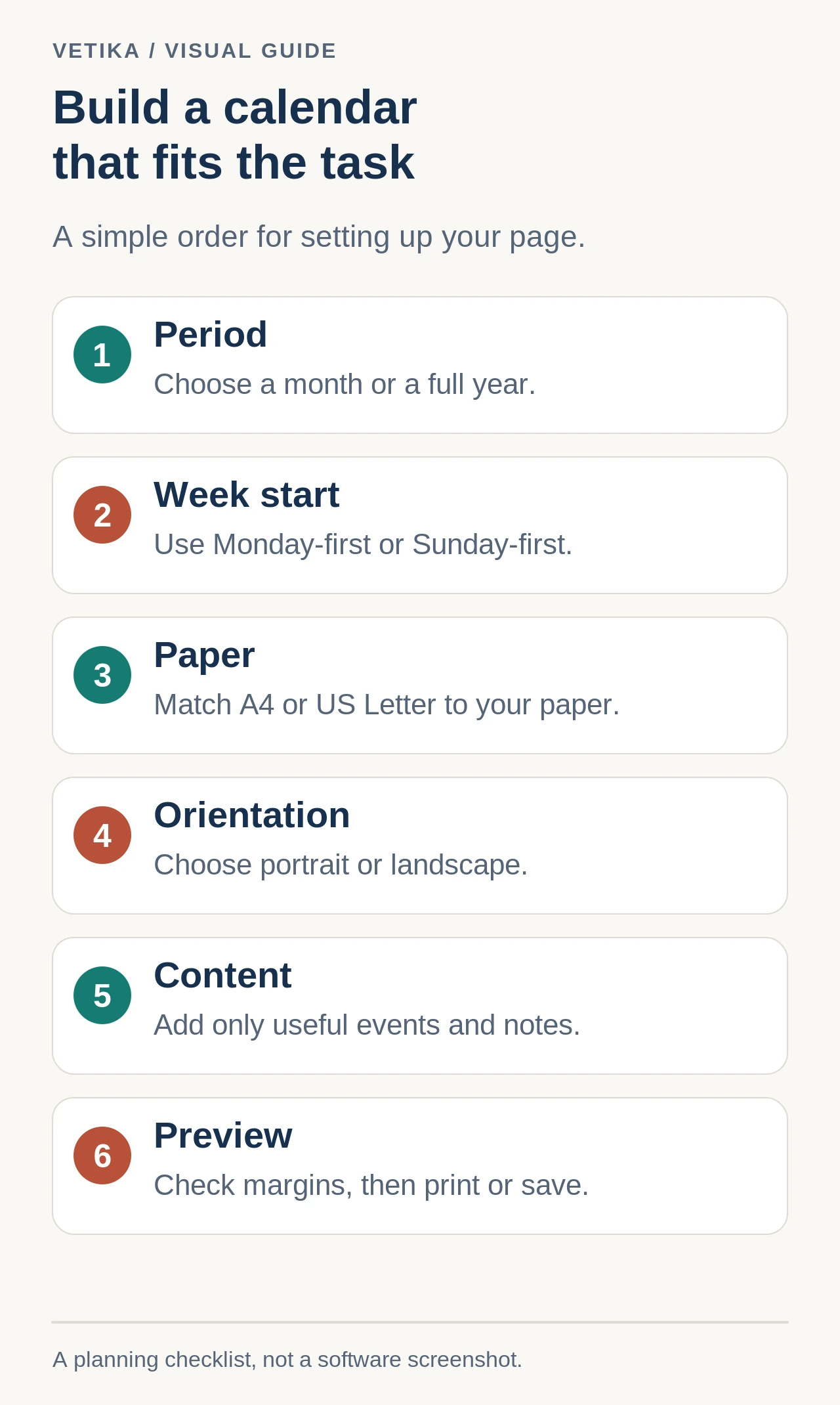
QUICK ANSWER
Start with the job the calendar needs to do
A printable calendar works best when its layout follows the decision you are trying to make. A monthly sheet is useful when you need room to write appointments, school dates, shifts or deadlines. A yearly overview is better when you want to see seasons, travel windows, launches or recurring milestones at a glance. Before changing colors or paper settings, choose the period and amount of writing space you actually need.
If you want to build the calendar while following these steps, the Printable Calendar Generator lets you switch between monthly and yearly modes without creating separate files.
IN DETAIL
Choose the period before formatting
For a monthly calendar, select the month and year first. This determines the weekday alignment, number of days and whether February has 28 or 29 days. For a yearly calendar, select the year and check the whole twelve-month pattern before printing. Doing this first prevents a common mistake: perfecting a layout and only then discovering that the chosen month starts on a different weekday than expected.
Example: planning an exam month
Suppose you need a calendar for May 2027. You may want a monthly page because you need to write revision blocks and exam dates inside each day. A yearly overview would show May in context, but each day would have much less writing space.
IN DETAIL
Decide whether Monday or Sunday comes first
The first column changes how the week is visually grouped. Monday-first often matches work and study schedules built around Monday-to-Friday routines. Sunday-first is familiar in many calendars and can make a Sunday-to-Saturday week feel natural. Neither arrangement is universally correct; consistency with the way you plan matters more than the label on the first column.
If you are unsure, compare the conventions in Monday vs Sunday: Which Day Should Start the Week?. If you enable ISO week numbers, remember that ISO week numbering is Monday-based even when the visible calendar begins on Sunday.
IN DETAIL
Add only the information that improves the page
A printable calendar can be intentionally blank, lightly annotated or detailed. Add a custom title when the page needs context such as “Project Launch — October” or “Family Schedule”. Add events when the dates matter more than free writing space. Use the notes area in monthly mode for reminders that do not belong to one particular date, such as a monthly goal, phone numbers or a short checklist.
Too much text makes a printed calendar harder to scan. If several events share one date, shorten event titles to the information you need on paper and keep the full planning detail elsewhere.
IN DETAIL
Choose A4 or US Letter based on the printer and destination
A4 measures 210 × 297 mm. US Letter measures 8.5 × 11 inches. They are similar but not interchangeable, so selecting the correct paper size reduces scaling surprises and clipping. Portrait gives more vertical depth; landscape gives more horizontal width, which is often useful for monthly grids with seven columns.
The practical trade-offs are covered in A4 vs US Letter for Printable Calendars.
IN DETAIL
Preview before printing
Check the calendar as a sheet, not just as a form. Confirm the title, weekday order, month or year, event counts, notes and orientation. On smaller screens, the preview may sit inside a controlled viewport; that is preferable to shrinking the whole interface until labels become unreadable.
- Check that no important event is hidden by an overflow indicator.
- Confirm that yearly mode is readable without full event titles inside miniature months.
- Verify that notes are present only when you actually want a monthly notes area.
- Make sure the selected paper and orientation match what you will choose in the browser print dialog.
IN DETAIL
Print or save as PDF
Use the browser’s print workflow. For paper, select the same size and orientation you configured in the calendar. For a digital copy, choose the browser or operating system option commonly labelled “Save as PDF”. A web page should not call this a PDF download unless it actually creates a PDF file itself.
Print preview is the final place to catch scaling and margin problems. If your browser offers a “Fit to page” or scale control, avoid changing it unless the preview shows clipping; an unexpected scale can make writing areas smaller than intended.
IN DETAIL
Practical layouts
Home schedule
Use a monthly landscape sheet, Sunday or Monday first according to household preference, short event labels and a notes area for recurring chores.
Project roadmap
Use yearly landscape mode with event indicators rather than long labels. This gives a compact overview of milestones without turning each mini-month into a text block.
Study planner
Use monthly portrait or landscape depending on how much you write per day. Put fixed exams in events and broader revision targets in notes.
Check your own data with the primary tool.
IN DETAIL
Common printing mistakes
- Printing A4 content on Letter paper, or the reverse, without checking preview scaling.
- Choosing portrait when the seven-column calendar needs more horizontal room.
- Assuming a Sunday-first layout changes ISO week numbering.
- Adding so many event labels that the printed grid loses useful writing space.
- Skipping print preview and discovering clipping only after printing.
Open the related tool and apply what you learned.